


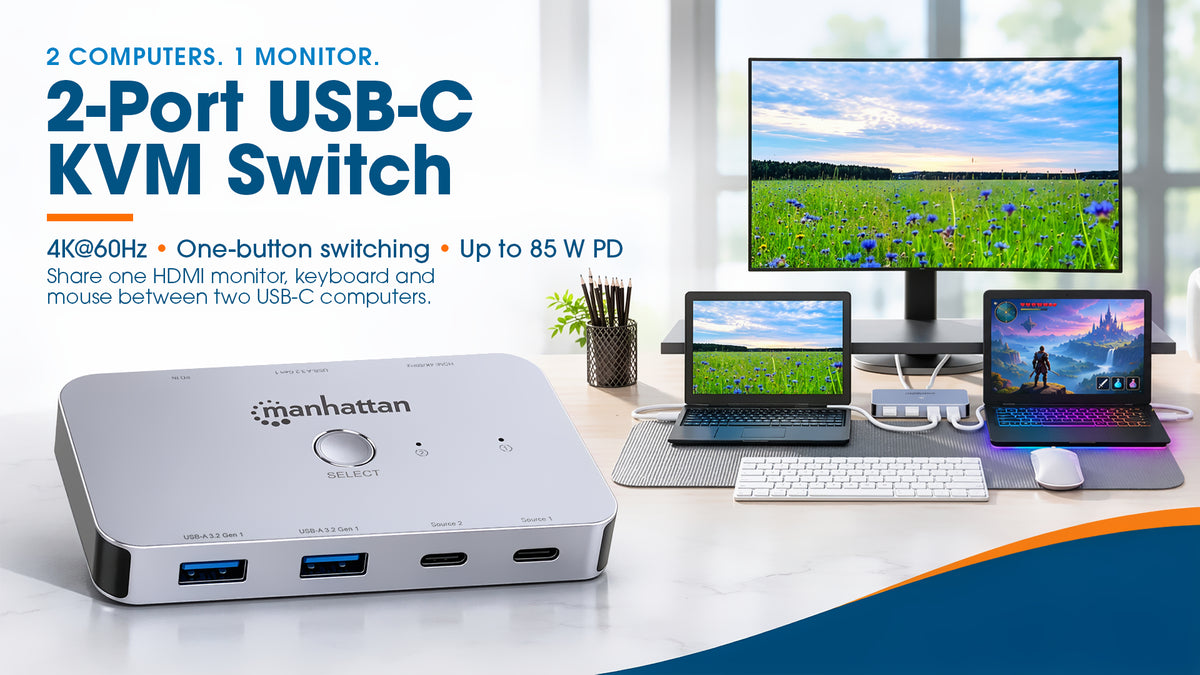

Featured KVM Switch

2-Port HDMI USB-C KVM Switch
For a two-computer, one-monitor workstation: share a single HDMI display, keyboard and mouse between two compatible USB-C laptops or computers. Select which computer is active using the button on the switch.
KVM Setup Guide
How to Connect 2 Computers to 1 Monitor with a KVM Switch
If you use a work laptop and a personal laptop, you may want both to share the same external monitor, keyboard and mouse. A USB-C KVM switch lets you choose which computer uses those peripherals without unplugging and reconnecting them each time.
Quick answer: Connect both computers to the KVM's USB-C host ports, connect one monitor to its HDMI output, plug your keyboard and mouse into its USB-A ports, and attach the required USB-C PD power supply. Press Select to switch the monitor and peripherals between computers.
Step-by-Step: Set Up the Manhattan USB-C KVM Switch
Before connecting anything, gather your two USB-C devices, an HDMI monitor, compatible cables, a USB-A keyboard and mouse, and a USB-C PD charger. Check the product specifications for the connections needed in your setup.
What you'll need
Connect the two computers
Connect the first USB-C computer to Source 1 and the second to Source 2 using compatible USB-C cables. These are the two host connections on the KVM switch.
Connect the monitor
Run an HDMI cable from the KVM's HDMI output to the monitor's HDMI input. This model supports one external monitor at up to 4K resolution and 60 Hz, provided the connected equipment supports that output.
Plug in the keyboard and mouse
Connect your USB-A keyboard and mouse to the switch's USB-A ports. A third USB-A port is available for an additional peripheral, such as a storage device, with data transfer speeds up to 5 Gbps.
Connect USB-C Power Delivery
Connect an external USB-C PD charger to the port labeled PD IN. Manhattan specifies a minimum 60 W PD charger for operation and a 100 W PD charger for maximum charging output. The charger is sold separately.
Press Select to switch computers
With the computers and monitor powered on, press the top-mounted Select button. The monitor displays the selected computer, while the connected keyboard and mouse control that same computer. Press again to switch back.
Charging detail: With one USB-C computer connected, the KVM can provide up to 85 W to that host. With two connected, the maximum charging distribution is 65 W to Source 1 and 20 W to Source 2. Actual charging depends on the PD power supply and connected devices.
Choosing the Right Switch
HDMI Switch vs. KVM Switch: What's the Difference?
An HDMI switch and a KVM switch can both change which device appears on one monitor, but they serve different purposes. The important question is whether you need to switch only the video or the video, keyboard, and mouse together.
HDMI Switch
An HDMI switch selects which HDMI source appears on one screen. It typically switches video and HDMI audio, but does not share a USB keyboard and mouse between computers.
Example: Connect a game console and a streaming device to one TV, then choose which source to watch.
KVM Switch
KVM stands for keyboard, video, and mouse. A KVM switch changes the active computer on your monitor and transfers control of the shared keyboard and mouse to that computer.
Example: Use one monitor, keyboard, and mouse for a work laptop and personal laptop without repeatedly reconnecting peripherals.
Wide Compatibility for Versatile Use
Compatible with Windows®, macOS®, Android™, iOS®, Chrome OS®, iPadOS®, and Linux®, this KVM switch supports a wide range of devices, including MacBook®, iPad® Pro, iPhone 15/16, Chromebook™, Samsung Galaxy, and more.
If the monitor stays blank: Check that the USB-C and HDMI cables are connected securely, the monitor is set to the correct HDMI input, the external PD charger is connected, and the desired computer is selected with the Select button. Refer to the installation guide for connection details.
For Mac computers, Manhattan specifies use of a standard PC keyboard and mouse rather than Mac-specific peripherals. View the product page for the full specifications.
Frequently Asked Questions About KVM Switches
Can I connect two laptops to one monitor with a KVM switch?
Yes. A compatible 2-port KVM can connect two laptops to one shared monitor, keyboard and mouse. Manhattan model 154390 uses USB-C host connections and one HDMI monitor output.
Can I display both computers at the same time?
No. This KVM selects one computer at a time for the shared HDMI monitor. It does not combine two computer images into one picture or supply two separate monitor outputs.
Are the HDMI and USB-C cables included?
No. The product package includes the KVM switch and instructions. You will need compatible USB-C host cables, an HDMI cable, and a suitable external USB-C PD charger.
Can it charge two laptops while I switch between them?
Yes, with a suitable external PD charger. Maximum output when both computers are connected is 65 W for Source 1 and 20 W for Source 2. With one host connected, up to 85 W is available.
What is the difference between an HDMI switch and a KVM switch?
An HDMI switch selects the HDMI video source displayed on a screen. A KVM switch also switches the shared keyboard and mouse, making it the better choice when you need to control two computers from one workstation.
A Single-Monitor Setup for Two Computers
For a workstation built around one external display, a USB-C KVM switch keeps the monitor, keyboard and mouse connected in one place. If you need to switch both the screen and the controls between computers, a KVM is more suitable than a basic HDMI switch. Check the monitor configuration, connection types, and charging requirements before setting up your two computers.
Explore the Manhattan USB-C KVM Switch
Review the 2-Port HDMI USB-C KVM Switch's complete specifications and installation requirements before choosing your setup.